
Table of Contents
- SoundSwitch vs Lightkey: Core Differences in Lighting Control
- Feature Comparison: What Each Platform Offers
- How to Use Stream Deck for Lighting Scene Recall
- Integrating Smart Lights into DMX Rigs
- Workflow Integration: Which Software Fits Your Rig
- Common Setup Issues and Latency Considerations
- Which Software Should You Choose?
- Frequently Asked Questions
Last Updated: September 26, 2026
SoundSwitch vs Lightkey: Core Differences in Lighting Control
When you're running lights for a live event, the software you choose determines whether you're in control or scrambling. Soundswitch vs lightkey for lighting control presents two different philosophies: both offer professional DMX control, but they approach it differently.
The real distinction is workflow philosophy. SoundSwitch leans toward music-reactive automation and beat matching, while Lightkey emphasizes manual precision and scene recall.
Feature Comparison: What Each Platform Offers
SoundSwitch specializes in music-reactive lighting. It listens to audio input, analyzes beat and frequency data, and triggers light changes automatically. That's powerful for concerts and dance events where the lights need to move with the music without a technician babysitting faders.

Lightkey takes the opposite approach. It's built around manual control, scene storage, and tactile triggering. You build your scenes during soundcheck, save them, and recall them with buttons, MIDI controllers, or keyboard shortcuts during the show. The interface is visual and immediate. What you see is what you control.
| Feature | SoundSwitch | Lightkey | DMX Smart Link |
|---|---|---|---|
| Beat-reactive automation | Yes | No | No (manual scenes) |
| Scene recall from buttons | Yes | Yes | Yes |
| MIDI controller support | Yes | Yes | Yes |
| Art-Net input/output | Limited | Yes | Yes |
| sACN support | No | Yes | Yes |
| Govee smart light control | No | No | Yes (native) |
| Fixture library size | 8,000+ | 12,000+ | Over 12,000 |
| Runs on Mac/Windows/Linux | Yes | Windows only | Yes (Windows, Mac, Linux, Pi) |
| Free trial | 30 days | 14 days | 14 days (no credit card) |
Fixture library size matters. More profiles means fewer custom fixtures to create mid-event. Lightkey and DMX Smart Link both exceed 12,000 profiles; SoundSwitch's is smaller.
Lightkey runs Windows only. Mac users and Raspberry Pi installations need SoundSwitch or DMX Smart Link. DMX Smart Link also supports Ubuntu and Raspberry Pi for permanent installs.
How to Use Stream Deck for Lighting Scene Recall
Stream Deck integration replaces screen clicks with physical keys. Each key triggers a scene instantly. It's the difference between operating a rig and clicking through a menu.
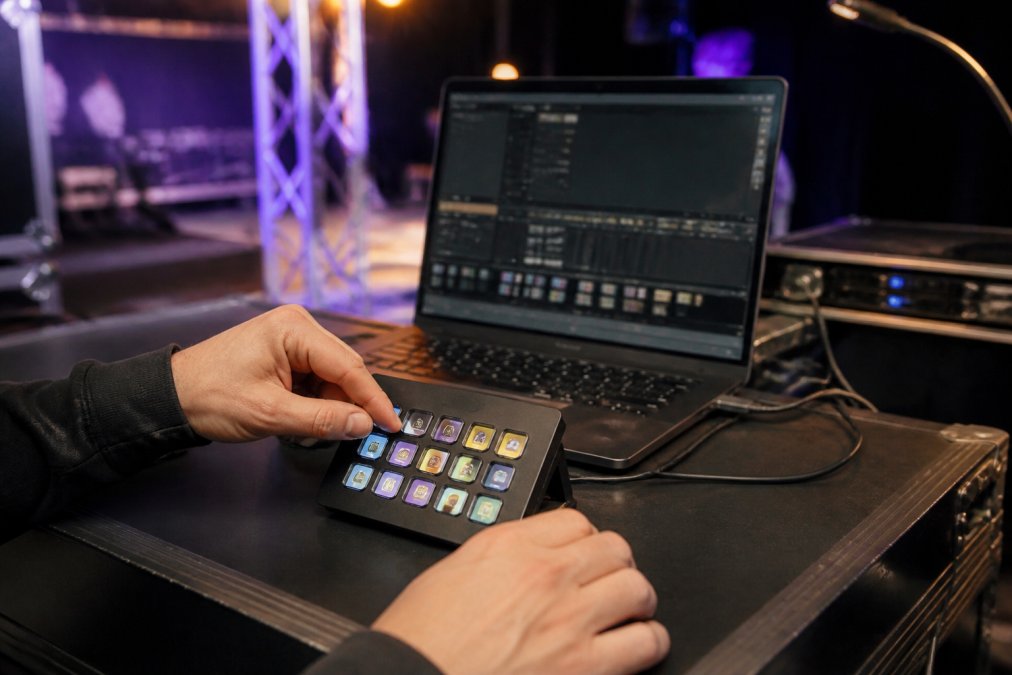
Both Lightkey and DMX Smart Link support Stream Deck natively. SoundSwitch requires Companion or OSC routing. With DMX Smart Link, saved scenes automatically map to deck keys.
Build and save scenes during soundcheck. Connect Stream Deck to your lighting computer. Assign scenes to keys in the Stream Deck app. During the show, press keys to recall scenes instantly. A Stream Deck key takes one hand; a keyboard shortcut takes two hands and muscle memory.
Integrating Smart Lights into DMX Rigs
Most modern rigs mix professional DMX fixtures with Govee smart lights. SoundSwitch and Lightkey don't natively control Govee; you run them in parallel and manually adjust Govee during the show. DMX Smart Link controls Govee lights directly into your DMX rig as unified fixtures. A scene that includes moving heads, pars, and Govee zones saves as one unified scene. Press one button and everything moves together. No app switching. No out-of-sync states.
The integration works through Homebridge or Home Assistant, middleware platforms that expose smart devices as controllable endpoints. Homebridge runs on your existing computer (Mac, Windows, Linux, or Raspberry Pi). Home Assistant requires a separate device and more setup.
Install Homebridge or Home Assistant. Authenticate with your Govee account. Both scan your network for devices; manually add any that don't appear by device ID. Expose devices to DMX Smart Link via HomeKit (Homebridge) or API token (Home Assistant). Your Govee lights then appear as fixtures in DMX Smart Link's library.
The integration pays off if you're running 3+ Govee zones synchronized with DMX fixtures, managing multiple venues from one surface, running a permanent install, or using Govee for color-changing accent. If you're running a single Govee light and okay manually adjusting it, skip the integration and run the Govee app on a tablet.
DMX Smart Link Software — Annual License →
Device discovery failures: Govee devices use 2.4 GHz Wi-Fi only. If your computer is on 5 GHz, they won't discover each other. Ensure both are on the same 2.4 GHz network. Authentication timeouts: Restart Homebridge or Home Assistant and wait 5 minutes. If it persists, check your internet connection. Scene synchronization lag: Use local network control for Govee instead of the Govee cloud to reduce lag to under 500 milliseconds. Fixture library conflicts: Rename Govee lights in the Govee app to include "Govee" in the name (e.g., "Govee Foyer") to avoid confusion in your scene list.
Workflow Integration: Which Software Fits Your Rig
SoundSwitch is for DJs and performers who want music-reactive lighting. Lightkey is for technicians who want precision and manual control. DMX Smart Link is for mixed rigs: professional fixtures plus smart lights, or anyone needing to control lights from multiple platforms. The workflow question is simple: Do you want music reactivity or manual control? When comparing soundswitch vs lightkey for lighting control, choose SoundSwitch for music reactivity, Lightkey (Windows) or DMX Smart Link (any OS) for manual control, and DMX Smart Link exclusively for manual control plus smart light integration.
Common Setup Issues and Latency Considerations
Latency compounds in live shows. SoundSwitch's music reactivity introduces latency by design (audio analysis takes time). Lightkey's latency is lower (direct button-to-light). DMX Smart Link's latency depends on transport: Art-Net over Ethernet is under 10 milliseconds; USB-to-DMX is 15-25 milliseconds. Govee cloud adds 200-500 milliseconds. Use local network control for Govee if you need sub-100-millisecond response.
Network congestion and driver misconfiguration are the real latency killers. Record video of yourself pressing a button and the light responding; play it back frame-by-frame (one frame at 24 fps is about 42 milliseconds). Check your network for packet loss and retransmissions.
Common failure modes:
Beyond latency, three specific issues plague live lighting setups:
Art-Net broadcast storms. If multiple devices on your network are broadcasting Art-Net packets (two computers running lighting software, a grandMA console, and a media server), the network can become saturated. Each device floods the network with redundant packets. Switches and routers start dropping frames. The result is intermittent light dropouts or 500+ millisecond delays. Solution: designate one device as the Art-Net controller. All others listen only. If you need multiple controllers, use unicast Art-Net (point-to-point) instead of broadcast.
Which Software Should You Choose?
Pick SoundSwitch if you're a DJ or performer running beat-reactive shows and you want automation to handle most of the lighting work.
Frequently Asked Questions
What are the main differences between SoundSwitch and Lightkey for lighting control?
SoundSwitch focuses on beat-matching and automated light shows synced to music, making it popular with DJs. Lightkey emphasizes manual fixture control and scene management, appealing to theater technicians and churches. SoundSwitch integrates deeply with DJ software, while Lightkey works as a standalone DMX controller. Both support Art-Net and standard DMX fixtures, but they approach workflow differently: SoundSwitch automates based on audio, Lightkey requires deliberate scene triggering.
Can I use Stream Deck with both SoundSwitch and Lightkey?
Yes, both platforms support Stream Deck integration. With Lightkey, you can assign saved scenes to Stream Deck buttons for instant recall during a service or performance. SoundSwitch also integrates with Stream Deck, allowing you to trigger automated light shows or switch between preset lighting looks. The exact setup differs between platforms, so check their documentation for configuration steps specific to your workflow.
Which software is better for integrating smart lights into DMX rigs?
Neither SoundSwitch nor Lightkey natively controls consumer smart lights like Govee fixtures. Both are designed for professional DMX gear. If you need to control smart lights alongside professional DMX fixtures in a single interface, you'll need a dedicated controller like DMX Smart Link, which controls smart lights as real DMX fixtures and works with both Lightkey and QLC+ via Art-Net input. This approach keeps your existing console while adding smart light support.
Is SoundSwitch better for automated DJ lighting than Lightkey?
Yes. SoundSwitch excels at beat-matching and music-reactive automation, automatically triggering lighting changes in sync with drum hits and bass drops. Lightkey is manual-control focused and requires a technician to recall scenes by hand or through MIDI. For mobile DJs wanting hands-free automation during performances, SoundSwitch is the stronger choice. For churches and theaters where a technician operates the console, Lightkey's precision control is often preferable.
Can DMX Smart Link work alongside SoundSwitch or Lightkey?
Yes. DMX Smart Link speaks Art-Net and sACN, so it can receive DMX data from either platform and control smart lights while your main console (running SoundSwitch or Lightkey) controls professional fixtures. This hybrid workflow lets you run moving heads and LED pars through your existing software while DMX Smart Link speaks both protocols and adds Govee smart lights to the same scenes. It eliminates app fumbling and keeps everything in one dashboard.
