
Table of Contents
- What You'll Need Before You Patch Smart Home Lighting Into DMX
- Step 1: Map Your Rig, Universes, and DMX Addresses
- Step 2: Set Up Govee Smart Light DMX Control
- Step 3: Patch Smart Lights as Real DMX Fixtures
- Step 4: Build a MIDI Controller Lighting Setup
- Step 5: Art-Net and sACN Integration for Larger Rigs
- Fixing Latency, Sync, and Signal Problems
- Common Mistakes to Avoid
- Frequently Asked Questions
Last Updated: September 25, 2026
What You'll Need Before You Patch Smart Home Lighting Into DMX
To integrate smart home lighting into DMX you need four things: a DMX controller, a way to reach your smart lights, a universe plan, and a test night before the show.
Here is what to gather before you start:
- A DMX controller or lighting console (hardware or software)
- A DMX interface, either USB or network-based
- A computer or Raspberry Pi to run your control software
- Your smart lights, powered and on the same network
- A DMX address plan written down on paper
- Spare XLR cable and a DMX terminator
Step 1: Map Your Rig, Universes, and DMX Addresses
A universe holds 512 channels, a hard ceiling. Map your fixtures before you touch a cable.

Assigning DMX addresses and daisy-chaining fixtures
Daisy-chaining means running cable from one fixture's DMX out to the next fixture's DMX in. Each fixture reads only the channels addressed to it.
A few rules that save headaches:
- Give every fixture a unique address block
- Keep addresses sequential so troubleshooting stays sane
- Terminate the last fixture in the chain with a 120-ohm resistor
- Keep cable runs short; long runs invite signal problems
Step 2: Set Up Govee Smart Light DMX Control
Govee smart light DMX control works by putting your smart lights on the same network as your controller, then letting the controller address them like any other fixture. There are two ways to reach Govee lights, and the choice affects how your rig behaves on show night.
Cloud versus local network control
Cloud control sends commands out to the Govee cloud and back to your lights. It is easy to set up, but if the venue Wi-Fi drops, your lights stop responding.
| Control Method | Speed | Works Offline | Best For |
|---|---|---|---|
| Govee cloud | Slower | No | Home setups, remote access |
| Local network | Faster | Yes | Live shows, churches, DJ sets |
| Home Assistant / Homebridge | Varies | Yes | Mixed-brand smart light rigs |
Configuring local network control step by step
Local control survives a dropped internet connection, so do it carefully:
- Put your Govee lights and controller on the same subnet. A flat network with one router is easiest; if you run VLANs, make sure the lighting VLAN can reach the devices.
- Reserve IP addresses for each Govee device in your router's DHCP table. Lights that change IP mid-show are a common source of "why did that fixture stop responding" moments.
- Disable client isolation on the Wi-Fi network your lights use. Many guest networks isolate clients, which blocks local control entirely.
- Confirm your controller can see each light on the LAN. A quick ping tells you whether the device is reachable before you patch anything.
- Add each light in DMX Smart Link, choosing local network as the connection method, and give it the address from your plan.
- Test on/off, brightness, RGB, and color temperature one at a time. Not every Govee model exposes every channel, so verify what your hardware responds to.
What to do when a light won't show up
If a Govee light does not appear after you add it, check these in order:
- Confirm the light is on the same subnet as the controller. A light on 2.4 GHz and a controller on a different VLAN will not see each other.
- Check that the light's firmware is current in the Govee app. Older firmware sometimes lacks the local control endpoint.
- Turn off any "guest network" or "AP isolation" setting on the router.
- Try the cloud method as a test. If the light responds over the cloud but not locally, the problem is network configuration, not the light.
- Restart the light and the controller. A stale DHCP lease is a frequent culprit.
Step 3: Patch Smart Lights as Real DMX Fixtures
Patching is where the two worlds meet. You tell your console that a smart light is a fixture, give it a DMX address, and control it like everything else on the rig.
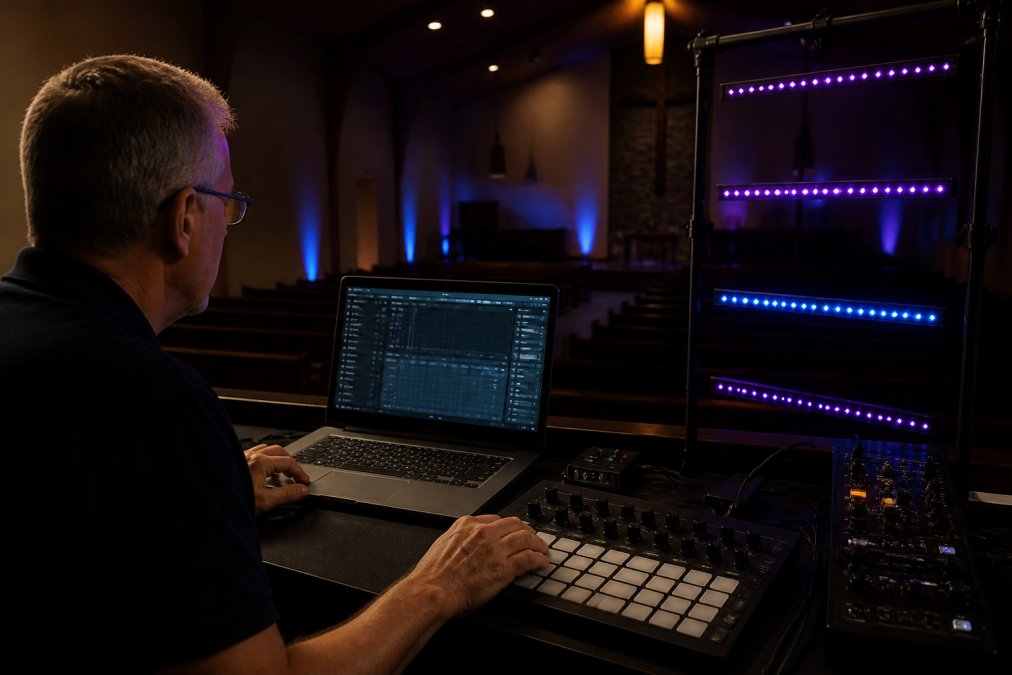
The practical steps look like this:
- Open your controller software and add a new fixture
- Pick the closest matching profile, or build a custom one
- Assign the fixture a DMX address from your plan
- Set the channel order (red, green, blue, white, dimmer)
- Test each channel one at a time
- Save the patch and label the fixture clearly
Step 4: Build a MIDI Controller Lighting Setup
A MIDI controller lighting setup gives you physical faders and pads instead of a mouse. For live work, that is the difference between reacting and fumbling.
- Pads recall saved scenes
- A fader on CC 7 rides the master level
- CC 20 and CC 21 step forward and back through scenes
Step 5: Art-Net and sACN Integration for Larger Rigs
Art-Net and sACN integration sends DMX data over Ethernet instead of cable, letting you run multiple universes across a venue without dragging hundreds of feet of XLR.
When to move to network-based control:
- You need more than one universe
- Your console sits far from the stage
- You run fixtures in separate rooms or zones
- You want to add wireless access points for remote control
Fixing Latency, Sync, and Signal Problems
Most problems on a smart-light DMX rig trace back to a handful of causes, and the symptoms overlap enough that guessing wastes time. Work through them in a fixed order.
Start with the physical layer
Before you touch any software, confirm the cable side is clean. A missing 120-ohm terminator is the most common cause of flicker and dropped channels, because the data packet reflects back down the line and collides with the next one. After that, check for:
- A cable that got pinched under a road case or a pew
- A DMX run that exceeds roughly 1,000 feet without a splitter or repeater
- A 3-pin XLR cable used where the fixture expects 5-pin, or vice versa, with the wrong pinout
- A fixture in the middle of the chain that lost power and is now breaking the signal path
Diagnosing latency and sync drift
Network DMX adds a small delay compared to a direct cable, and on a music-synced show that shows up as lights landing a beat late. Every hop adds a few milliseconds, and cloud control adds a full round trip to a remote server on top of that.
- Switch congestion. A shared switch carrying guest Wi-Fi, video streaming, and lighting traffic will queue your DMX packets behind everything else. Put lighting on a dedicated switch or a dedicated VLAN.
- Wi-Fi channel overlap. If your smart lights are on Wi-Fi rather than Ethernet, a crowded 2.4 GHz channel adds jitter. Scan the venue and pick a clear channel.
- Wireless access point placement. A light at the far end of the room with a weak signal will respond late even on a good network. Move the AP or add a second one.
- Controller load. A laptop running lighting software, a browser, and a video feed is competing with itself. Close what you do not need during the show.
When lights behave randomly
Random fixture behavior almost always means duplicate DMX addresses. Two fixtures on the same address fight each other, and the fault looks intermittent because it depends on which one received the last command. Verify every fixture against your written address plan.
When lights stop responding mid-show
A rig that dies partway through a service or set usually has one of two causes: a cloud dependency that dropped, or a network connection that failed. If you run local control, the culprit is the network. Check the switch, the access point, and whether anyone unplugged something to charge a phone.
A short pre-show checklist
Run this before every event and most of these problems never reach the audience:
- Terminator in place at the end of every chain
- Every fixture responding to its address in a channel test
- Local control confirmed with the internet cable unplugged
- Lighting traffic on its own switch or VLAN
- A saved scene on a physical button as a fallback
A twenty-minute check beats a ruined service every time.
Common Mistakes to Avoid
The same handful of errors show up on rig after rig. Avoid these and you skip most of the pain.
- No address plan. You will lose an hour mid-setup guessing which fixture is which.
- Forgetting the terminator. Flicker looks like a hardware fault but is usually a missing resistor.
- Mixing cloud and local control by accident. Some lights respond fast, others lag, and the show looks sloppy.
- Never testing offline. Pull the internet cable during rehearsal. If the rig dies, you found a problem early.
- Skipping the fallback. Keep a saved scene on a physical button so one press brings the rig back if software hiccups.
Frequently Asked Questions
Can you control smart home lights with a DMX console?
Yes, when the smart lights are patched as fixtures in your control software. DMX Smart Link exposes Govee lights, plus anything running through Home Assistant or Homebridge, as addressable fixtures on your rig. Your console or software then sends DMX512 values to them the same way it drives a dimmer pack or moving head. Set the address, build the scene, and recall it from a phone, tablet, or browser during the show.
How do I patch Govee lights into DMX software?
Open your controller software, add a new fixture, and search the profile library for your Govee model. DMX Smart Link ships with over 12,000 fixture profiles, so most common models are already listed. Assign a universe and start address, then set the channel map for dimming, RGB, or color temperature. Test each channel with a slow fade before you commit the scene to a cue stack.
Can I use a MIDI controller to trigger smart home lighting scenes?
Yes. A USB MIDI controller works as a physical surface for your smart home lighting rig. Pads recall saved scenes, a fader on CC 7 rides the master level, and CC 20 and CC 21 step through scenes in order. That gives a DJ or volunteer one-handed control during a set without touching a laptop. Plug the controller into the machine running DMX Smart Link and map channels in the MIDI settings.
What causes latency between smart lights and DMX fixtures?
Most lag comes from cloud round trips, congested Wi-Fi, or a slow refresh rate on the smart device. Running Govee lights over the local network instead of the Govee cloud cuts response time noticeably. Keep the lighting network on its own access point, hardwire the control machine where possible, and set the DMX refresh rate to match the slowest fixture on the universe.
Live lighting does not forgive guesswork. The rig that works is the one you mapped, patched, and tested before anyone walked in the door. DMX Smart Link lets you control Govee and smart lights as real DMX fixtures, run scenes with fades from a phone, tablet, or browser, and drive the whole thing from a MIDI controller, Stream Deck, or YoloDeck, all on Windows, macOS, Ubuntu, or Raspberry Pi. Start the free 14-day trial and get your smart lights speaking the same language as the rest of your rig.
