
Table of Contents
- Why Smart Lighting Latency Happens (And Where It Hurts)
- Choosing a DMX Interface for Smart Lights
- Optimizing Wi-Fi for Stage Lighting
- Network Infrastructure: VLANs, Static IPs, and Multicast
- Hardware and Software Fixes: Firmware, Refresh Rate, and Fixture Mode
- Power Supply, Voltage Drop, and Budget Diagnostic Tools
- Frequently Asked Questions
Last Updated: September 24, 2026
Why Smart Lighting Latency Happens (And Where It Hurts)
Avoiding latency in smart lighting rigs starts with knowing which kind of delay you actually have. Two very different problems get called "lag," and fixing the wrong one wastes a whole rehearsal.
Visual Latency vs. Control Latency
A moving head that snaps a beat late is a visual problem. A button that takes a full second to register is a control problem.
Here is the practical difference:
| Symptom | Likely Cause | First Fix |
|---|---|---|
| Lights change late but evenly | Visual latency | Check fixture mode and refresh rate |
| Button press feels sluggish | Control latency | Check network and app path |
| Random flicker or dropouts | Packet loss | Check cabling and interference |
| Lights drift out of sync | Jitter | Check multicast and switch load |
Choosing a DMX Interface for Smart Lights
The right DMX interface for smart lights sends DMX512 output while also driving consumer fixtures over your network. That means Art-Net or sACN out to your stage gear, and a local or cloud path to your smart lights.
When you shop, check these:
- Does it output DMX512, Art-Net, and sACN?
- Can it control smart lights over the local network?
- Does it work with your console or software?
- Does it run offline once licensed?
- How many fixture profiles does it hold?
Hybrid Protocol Interoperability: DMX, Art-Net, sACN, and Wi-Fi
Most rigs are hybrids now. You have wired DMX fixtures, a few smart lights, and a console that speaks Ethernet. The interface has to translate between all of them without adding delay.
Optimizing Wi-Fi for Stage Lighting
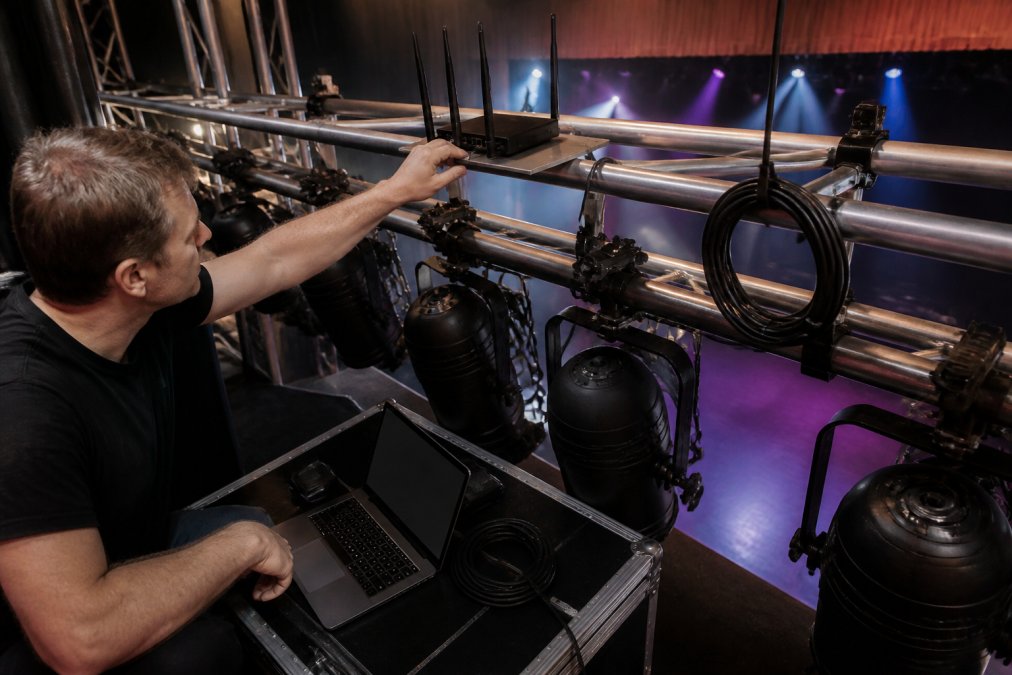
Optimizing Wi-Fi for stage lighting means giving your lights their own airspace. A shared network with phones, laptops, and guest devices will always add jitter to your cues.
2.4GHz vs. 5GHz: Which Band Your Lights Need
Use 2.4GHz for smart lights and 5GHz for your control devices. That split alone removes a lot of interference.
Practical setup:
- Put smart lights on 2.4GHz
- Put your tablet, laptop, and console on 5GHz
- Disable band steering so devices stay put
- Set a fixed channel instead of auto
Network Infrastructure: VLANs, Static IPs, and Multicast
A dedicated network for your lighting gear removes most congestion problems before they start. A VLAN keeps lighting traffic separate from guest Wi-Fi, streaming video, and whatever the youth group is doing on the lobby access point. The goal is simple: nothing that is not a light or a controller should share a broadcast domain with your cues.
Setting Up a Lighting VLAN
On a managed switch, create a new VLAN (for example, VLAN 20) and assign the ports that feed your lighting access point and your controller machine to it. Leave the uplink to your router tagged so the VLAN can reach DHCP and the internet if you need remote access, or leave it untagged and fully isolated if you want the rig air-gapped.
Static IPs and Why DHCP Bites You Mid-Show
DHCP leases expire. When a light's lease runs out and the router hands it a new address, your controller keeps sending to the old one and the fixture goes dark until you re-discover it. That looks exactly like latency, and it always seems to happen during the second set.
Multicast vs. Unicast: What Art-Net and sACN Actually Send
Art-Net and sACN often use multicast, which sends one data packet to many receivers. That is efficient on paper. In practice, an unmanaged switch treats a multicast packet like a broadcast and floods it out every port. On a busy network, that is a lot of unnecessary traffic, and it shows up as jitter.
What to Measure
You do not need a protocol analyzer to confirm a network problem. Two free tools cover most cases:
- Ping every lighting node from the controller machine. Round-trip times above about 10 ms on a wired LAN, or any packet loss at all, point to a switch or cabling problem.
- A managed switch's port statistics page shows CRC errors, dropped packets, and multicast counts per port. A port with rising CRC errors has a bad cable or a bad connector.
A Note on Wireless Access Points
If your smart lights connect over Wi-Fi, the access point is part of your lighting network and belongs on the VLAN. Disable any "guest network isolation" or "client isolation" feature on that SSID, it blocks the controller from reaching the lights even though both are on the same VLAN. Set the AP to a fixed channel, cap the number of associated clients if the firmware allows it, and keep the AP at least a few feet from any moving-light ballast or LED driver, which can spray RF noise across the 2.4GHz band.
Hardware and Software Fixes: Firmware, Refresh Rate, and Fixture Mode
Firmware updates fix more latency bugs than any other single step. Check your interface, your lights, and your router for updates before a big event.
Quick wins:
- Update firmware on every device
- Raise refresh rate where the fixture allows
- Simplify your software's live view during shows
- Close background apps that hog bandwidth
Power Supply, Voltage Drop, and Budget Diagnostic Tools
Voltage drop is the latency cause nobody checks. Long cable runs lose voltage, and a starved fixture can behave erratically, respond slowly, or flicker in ways that look like a network problem. Before you replace a switch or re-flash firmware, confirm the fixture is actually getting the voltage it expects.
How Voltage Drop Shows Up
LED fixtures and smart bulbs are constant-power loads. As supply voltage falls, current rises to compensate, and at some point the driver can no longer keep up. The symptoms are subtle at first: a fixture at the end of a long run responds a fraction of a second late, or its fade curve looks slightly different from the identical fixture at the head of the chain.
Checking It Without Expensive Gear
A basic digital multimeter is enough. Measure voltage at the power supply output, then at the far end of the run while the fixtures are at full brightness. The difference is your drop. As a rule of thumb, keep drop under about 5 percent of nominal voltage, roughly 0.6V on a 12V system or 1.2V on a 24V system.
Budget Diagnostic Tools Worth Keeping in the Bag
You do not need a $2,000 analyzer to find most latency problems. These cover the common cases:
- A digital multimeter for voltage checks at power supplies and at the far end of LED runs.
- A cable tester for both Ethernet and DMX runs. A $30 tester finds a bad crimp in seconds.
- A free Wi-Fi analyzer app (WiFiman, NetSpot, or the built-in scanner on most laptops) to see which 2.4GHz channels are crowded in the room.
- Ping and traceroute from the controller machine to each node. Round-trip time and packet loss tell you whether the problem is the network or the fixture.
- Your managed switch's port statistics page for CRC errors, drops, and multicast counts.
- A USB power meter inline with a smart light's power supply to confirm it is drawing what you expect.
When the Problem Is Not Power
If voltage is fine and the network is clean, the delay is probably in the control path. DMX Smart Link runs with no internet connection once licensed, which removes one more variable from your signal path. It also supports Elgato Stream Deck and YoloDeck scene keys, so a saved scene comes back with one press instead of a hunt through menus.
Frequently Asked Questions
What causes latency in smart lighting systems?
Smart lighting latency usually comes from four sources: network congestion on shared Wi-Fi, cloud round-trips when commands route through the internet, slow refresh rates on consumer fixtures, and packet loss from wireless interference. Each adds milliseconds that stack up. On a stage, a 100ms delay between the beat and the light flash is visible. Wired DMX output or a local network path cuts most of that delay.
How does network congestion affect lighting control?
When your lighting commands share a network with streaming video, guest Wi-Fi, or file transfers, data packets queue up and arrive late. Jitter increases, and cues fire unevenly. A dedicated VLAN or separate access point for lighting traffic keeps control packets moving on time. For DMX interface setups using Art-Net or sACN, multicast traffic should stay on its own segment to avoid collisions.
Is wireless DMX faster than Wi-Fi for stage lighting?
Wireless DMX and Wi-Fi both introduce latency, but wireless DMX typically delivers more consistent timing because it uses a dedicated protocol with less overhead. Wi-Fi shares bandwidth with everything else on the network. For critical cues, wired DMX or a local network connection from a DMX interface for smart lights gives the most predictable real-time response.
How can I synchronize smart lights with DMX fixtures?
The reliable way is to patch smart lights as DMX fixtures through a controller that speaks both protocols. DMX Smart Link, for example, controls DMX512 output alongside Govee and anything exposed through Home Assistant or Homebridge, so one console cue drives both. This avoids running two separate apps and keeps timing aligned. Test your exact fixture modes and refresh rates during rehearsal before a live show.
Latency in a live rig is a puzzle with a few known pieces: the band, the network, the firmware, and the power. Work through them in order and most delays disappear. DMXSmartLink was built for exactly this job, patching smart lights into your console as real DMX fixtures so you run one dashboard instead of two. It supports Art-Net and sACN, runs on Mac, PC, Pi, or Linux, and starts with a free 14-day trial. Start the free 14-day trial and get your rig responding on cue.
