
Table of Contents
- Why Smart Lighting Fails During Live Events
- Step 1: Verify Power Supply and Voltage
- Step 2: Check DMX512 Signal and Cable Integrity
- Step 3: Troubleshooting Art-Net and sACN Networks
- Step 4: Inspect Fixture Hardware and LED Drivers
- DMX Pixel Mapping for LED Installations
- Step 5: Update Firmware and Controller Configuration
- Common Setup Mistakes That Cause Failures
- Frequently Asked Questions
Last Updated: September 23, 2026
Why Smart Lighting Fails During Live Events
Smart lighting failures during live events almost always trace back to one of three causes: power delivery, signal integrity, or controller misconfiguration. When your Govee lights or DMX fixtures go dark mid-show, the problem is rarely the equipment itself. It's the setup.
The reason this matters now is that more DJs, churches, and small venues are mixing consumer smart lights with professional DMX gear. That hybrid approach works, but only if you know where failures hide. A single loose cable, a mismatched IP address, or a forgotten termination resistor can kill your entire rig.
This guide walks through troubleshooting smart lighting in professional stage setups step by step. We'll cover power verification, signal path integrity, network diagnostics, and the setup mistakes that catch most people. By the end, you'll know exactly where to look when lights fail and how to prevent the failure next time.
Step 1: Verify Power Supply and Voltage
Power failures account for roughly half of all smart lighting outages. Your fixtures need stable voltage to operate reliably. Fluctuating or insufficient power causes dimming, flickering, and total loss of signal.
Start here: check the power supply unit feeding your DMX controller and smart light hardware. Look for these specific issues:
- Voltage output: Use a multimeter to measure the voltage at the power supply terminals. Compare it to the rating printed on the device. If you're seeing more than a 5% variance, the supply is failing.
- Cable condition: Examine power cables for cuts, fraying, or crushed sections. A damaged cable can cause intermittent voltage drop.
- Outlet quality: Plug the power supply into a different outlet. Faulty wall outlets or overloaded circuits create voltage instability that cascades through your entire rig.
- Ground connection: Confirm the power cable is properly grounded. A missing ground pin increases noise and can trigger thermal protection shutdowns.
If voltage is stable but lights still fail, move to signal integrity.
Step 2: Check DMX512 Signal and Cable Integrity
A clean DMX signal is non-negotiable. DMX512 transmits data serially over twisted-pair cabling, and any break in the chain stops the entire universe.
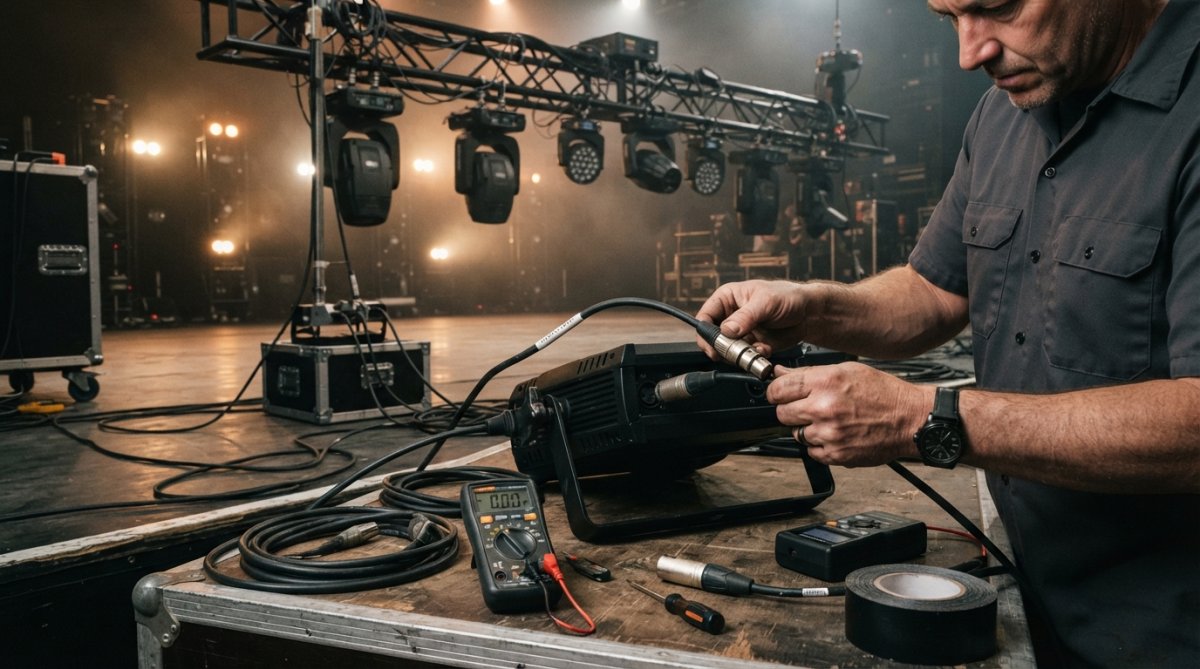
Start with the cable path.
- Visual inspection: Look for bent connectors, cracked cable jackets, or corrosion on contact pins. Moisture and oxidation kill signal transmission.
- Continuity test: Use a multimeter set to continuity mode. Disconnect the cable and test each pin. All five pins should show continuity from end to end. A failed pin means the cable is dead.
- Cable routing: Separate DMX cables from power cables by at least 12 inches. Proximity to high-current power lines induces noise that corrupts the signal.
Once cables check out, verify the daisy-chain itself.
Daisy-Chain and Termination Resistor Inspection
Every DMX512 chain must end with a termination resistor. This 120-ohm resistor absorbs signal reflections that would otherwise bounce backward and corrupt data.
Step 3: Troubleshooting Art-Net and sACN Networks
Modern stage setups increasingly use Art-Net or sACN to transmit DMX data over Ethernet. This approach eliminates cable length limits and allows unlimited universes. But network misconfiguration causes failures that are harder to diagnose than a broken cable.
- Network connection: Confirm the Ethernet cable is plugged in and the port light is on. Swap the cable with a known good one to rule out cable failure.
- DHCP vs. static IP: Determine whether your fixtures are set to DHCP (automatic IP assignment) or static IP. If you're mixing DHCP and static devices on the same subnet, they won't communicate.
- Broadcast domain: All Art-Net devices must be on the same subnet. If your controller is on 192.168.1.x and a fixture is on 192.168.2.x, they're isolated.
IP Address and Subnet Mask Configuration
Art-Net and sACN both require matching IP addresses and subnet masks. This is where most network-based failures occur.
Verify every device on your network:
DMX Smart Link HUB - Network Edition →
- Check the controller's IP address and subnet mask. Write them down.
- Check each smart light or Art-Net fixture. The first three octets must match the controller. For example, if the controller is 192.168.1.100, fixtures must be 192.168.1.x (where x is any number from 1 to 254).
- Confirm subnet masks match. The standard is 255.255.255.0. If a fixture has 255.255.0.0, it's on a different subnet and won't respond.
Detecting Signal Interference and Packet Loss
Ethernet networks are susceptible to interference, especially in venues with wireless systems, LED screens, or radio microphones. Interference causes packet loss, which manifests as lag, flickering, or complete signal dropout.
Test for interference:
- Cable placement: Move Ethernet cables away from power cables, wireless antennas, and RF equipment. Keep at least 12 inches of separation.
- Switch quality: Use a managed Ethernet switch if you have more than four Art-Net devices. Consumer-grade switches drop packets under load.
- Packet loss measurement: Most controllers have a network diagnostic tool. Check for packet loss percentage. Anything above 1% indicates interference or hardware failure.
Step 4: Inspect Fixture Hardware and LED Drivers
When power and signal are solid but lights still fail, the problem is inside the fixture. LED drivers and internal PCB components degrade over time, especially in hot or humid venues.
Inspect each fixture visually:
- LED color consistency: If some LEDs are dim or discolored, the LED driver is failing. This typically means the fixture needs replacement.
- Thermal protection: If a fixture shuts off after 10-15 minutes, thermal protection is triggering. This means the LED driver is overheating. Check for blocked ventilation or inadequate cooling.
- Corrosion on contacts: If the fixture has external connectors, look for white or green oxidation. Clean contacts with electrical contact cleaner and a soft brush.
DMX Pixel Mapping for LED Installations
Pixel mapping, controlling individual LEDs or LED strips as discrete channels, requires precise DMX configuration. Each LED or group of LEDs consumes three channels (red, green, blue). A 10-LED strip needs 30 channels.
When pixel-mapped LEDs show wrong colors or don't respond:
- Verify the fixture profile: Open your controller and check the fixture profile for your LED strip. It must specify the correct number of channels and RGB order. Some manufacturers use RGB, others use BGR. Wrong order means wrong colors.
- Check universe assignment: Confirm the fixture is patched to the correct universe and starting address. If you're using multiple universes, verify the universe number matches the controller's output.
- Test with a simple scene: Create a scene that sets all LEDs to red. If they're green or blue instead, the RGB order is wrong. Edit the fixture profile to correct it.
Step 5: Update Firmware and Controller Configuration
Firmware bugs cause unexpected failures. If your controller or smart lights are running outdated firmware, update them immediately.
After updating firmware, test your entire rig. Verify:
- All fixtures respond to scene recalls
- Art-Net or sACN communication is stable
- Fades and timing are smooth
- No unexpected dropouts occur
Common Setup Mistakes That Cause Failures
Forgotten termination resistor. The last fixture in a DMX chain must have a termination resistor. Without it, signal reflects and creates packet loss. Install one.
Frequently Asked Questions
Why are my smart lights flickering during a DMX show?
Flickering usually stems from three sources: voltage fluctuation at the power supply unit, DMX512 signal loss due to poor cable continuity or missing termination resistor, or refresh rate mismatch between your controller and fixtures. Start by checking the power supply voltage with a multimeter, then verify your daisy-chain termination. If using Art-Net or sACN, confirm your subnet mask and IP address configuration match across all devices. Signal interference from nearby wireless equipment can also cause flicker; move cables away from power lines and radio sources.
How do I fix latency issues between my lighting console and smart lights?
Latency in smart lighting setups typically results from network packet loss or slow data packet transmission. For Art-Net and sACN networks, check your Ethernet cable quality and switch bandwidth. Ensure your controller is on the same subnet as your fixtures and confirm no firewall is blocking DMX512 traffic. If using Govee lights over the Govee cloud, switch to local network mode when possible to reduce round-trip delay. Test your signal by watching response time during a manual scene change; anything over 200 milliseconds indicates a network or configuration issue.
What causes smart lights to drop connection during a live performance?
Connection drops happen when signal loss exceeds the controller's tolerance. Common causes include thermal protection triggering on overheated LED drivers, power supply unit delivering insufficient current under load, or RDM (Remote Device Management) conflicts if your console supports bidirectional communication. Check your fixture profiles in the controller to confirm they match your actual hardware. Verify the power supply unit has enough headroom for all fixtures at full brightness. If using wireless smart lights, confirm they are within range and not experiencing interference from stage lighting or wireless microphones.
How do I set up DMX pixel mapping for LED installations?
DMX pixel mapping assigns individual LED channels to fixture profiles within your controller. First, load the correct fixture profile from the controller's library (DMX Smart Link includes over 12,000 profiles). Patch each fixture to a DMX universe and starting address, then map pixel rows and columns to match your physical LED layout. Test the mapping by sending a single color to one pixel, then expand to full strips. Confirm the refresh rate supports your pixel density; high-resolution installations may require dedicated Art-Net universes to avoid bandwidth saturation and signal loss.
